Introduction to MATLAB Programming
EE1021 Programming for Engineers - Lecture 12
Basri Erdogan
Introduction to MATLAB
Focus today: quick wins with the command window, tidy variables, fast matrix work.
Python → MATLAB quick wins:
- 1-based indexing,
()for access,endcloses blocks. ;suppresses output;ansholds unnamed results..*/./for element-wise;*for matrix mult.- Save/load
.mat; functions live in their own.mfile.
What is MATLAB?
- Matrix-first numerical environment, ideal for quick prototyping.
- “Programmable calculator” with built-in visualization.
- Best when you think in vectors and matrices.
- Coming from Python: similar numeric goals, but 1-based indexing, column-major order, and
endto close blocks.
Why use MATLAB?
- Polished plotting/UI out of the box (no Matplotlib boilerplate).
- Toolboxes for control, signal, stats, optimization without extra installs.
- Tight integration with hardware/Simulink and quick GUIs for lab rigs.
- IDE/debugger tuned for matrices; live scripts with sliders/inputs.
- Great for sharing with non-programmers (students, lab mates) who just run scripts.
Command Window: quick math
- Command window = scratchpad; type expression, press return, see result.
- Spaces do not matter; use it like a calculator.
- Try:
Using Variables
- Assign and reuse with
=; unnamed output goes intoans. - End a line with
;to suppress printed output (Python only prints when you callprint). - Workspace shows live variables; clear with
clear(all) orclear name.
Naming rules & built-ins
- Case-sensitive, start with a letter, use letters/numbers/
_only. - Avoid MATLAB keywords; MATLAB will warn you if you clash.
- Handy built-ins:
pi,i/j,inf,nan,eps. - Python contrast: no implicit imports—these are always in scope.
Matrices and Arrays
- Everything is an array; build them with brackets and colons.
- Rows separated by semicolons; ranges use
start:stoporstart:step:stop.
Matrices and Arrays (Operations)
.*and./for element-wise; plain*and/for matrix math.- Indexing:
A(n)orA(row,col); rows first, then columns. - Slices:
A(row,:),A(:,col),A(:)to flatten. - Python contrast: indices start at 1, use
()not[], and element-wise uses.*(NumPy’s default is element-wise).
Array Subscripting / Indexing
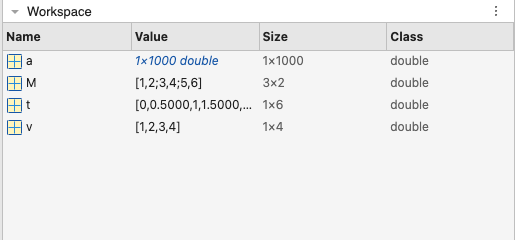
The Variable Editor
- Double-click a variable in the workspace to open the editor.
- Edit values directly like a spreadsheet; great for quick fixes.
wholists current variables from the command line.
The Command History
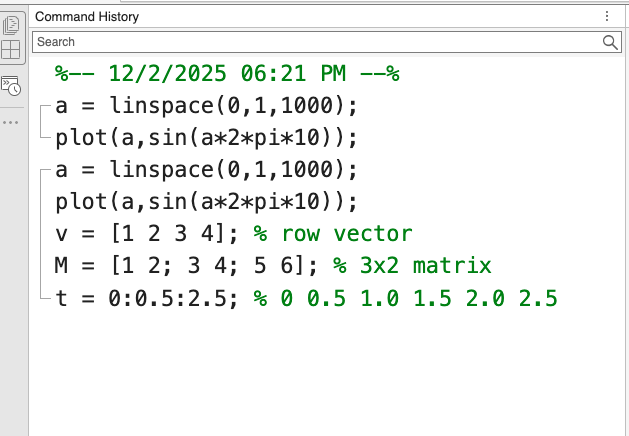
- MATLAB stores recent commands; double-click to rerun (watch for changed variables).
- Use the up-arrow to search through history; start typing to filter.
clcclears the command window; history stays.
Functions
- Learn the built-ins first:
mean,std,plot,sum,linspace, etc. - Standard pattern:
- If you skip the output, it goes into
ans.
Common Functions
mean: compute meanstd: compute standard deviationmin/max: min/max valuesrand/randn: random numbers
Python parallels: mean/std/min/max ~ numpy.mean/std/min/max; rand/randn ~ np.random.rand/randn; find(cond) ~ np.where(cond); size(A) ~ A.shape.
Data Handling
- Save workspace:
save mysession(createsmysession.matin current folder). - Load later with
load mysession; watch for name collisions. - Adjust the search path if files live outside the current folder.
- Python contrast:
save/loadwrites.mat(likepickle/np.save); loading can overwrite variables in the base workspace.
Getting Help
help functionfor quick docs;doc functionfor full examples.demoshows built-in walkthroughs.- MathWorks docs are excellent; community answers are everywhere.
- If stuck: search the function name + “MATLAB example.”
- Python parallel:
doc func~help(func); usewhich functo see the file being called (likeinspect.getfile).
Basics of Programming
Why program in MATLAB?
- Ubiquitous in engineering labs and courses; matches what industry expects.
- Hardware/Simulink integration makes control/signal prototypes fast.
- Live scripts mix narrative, code, and plots for easy sharing.
- Toolboxes remove dependency wrangling (no pip/conda env drift).
- Friendly for non-programmers to run and tweak scripts without setup.
MATLAB Data Structures: Strings
- MATLAB deals with many different types of variable.
- So far we have only considered single numbers, arrays and matrices.
- MATLAB can also operate on strings, which are just text variables.
- Strings are entered using single quotation marks
' '(double quotes give string scalars; both differ from Python’s list of chars). - Strings can be treated much the same as numeric variables.
- They can be concatenated, but follow standard rules.
- The functions
int2strandnum2strconvert numbers to strings, for display reasons. - The function
dispdisplays a string in the MATLAB command window.
MATLAB Data Structures: Strings (Example)
MATLAB Data Structures: Cells and Structures
Cell Arrays
- Hold mixed shapes/types in one container using
{ }. - Access elements with
{ }, then index inside with(). - Great for variable-length strings or mixed objects.
- Think “cell array ≈ Python list (mixed types allowed).”
Structures
- Group related data by field name:
struct.field. - Useful for participant records: names + data together.
- Fields can hold any type, even nested structs.
- Think “struct ≈ Python dict with dot access.”
Creating a script
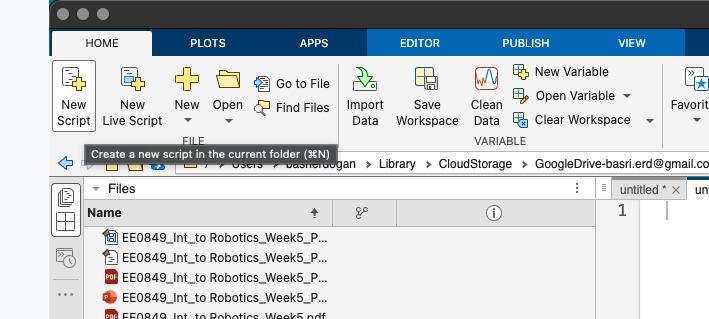
- New script: “New script”,
Ctrl+N, or File -> New -> Script. - Scripts are
.mfiles that run top-to-bottom. - Use current folder or add paths so MATLAB can find the file.
Running a script
- Save then run with Run (F5); highlighted region runs with F9.
- Scripts share the base workspace (they see current variables).
- Keep the Current Folder set to where the script lives.
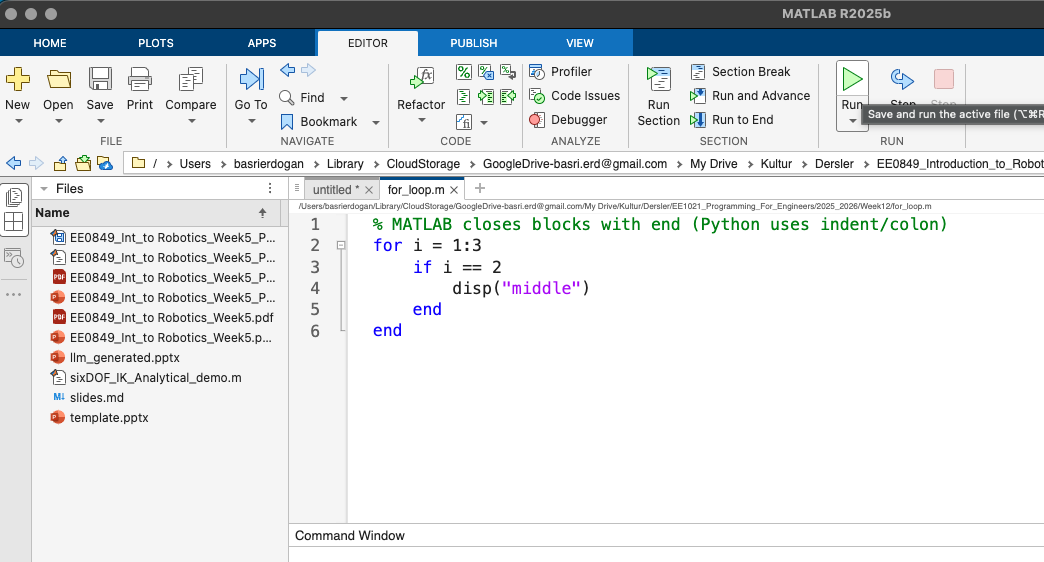
Annotating Code
- Comment with
%; block comments:%{ ... %}. - Use
%%to split code into runnable cells (Ctrl+Enter). - Long lines: end with
...to continue.
More Advanced Programming
- Conditionals choose branches; loops repeat work.
- Always update loop conditions;
Ctrl+Cstops a runaway loop. - Start simple: one
if, onefor, then expand.
Review of MATLAB Operators
Relational
| op | meaning |
|---|---|
== |
equal to |
< |
less than |
> |
greater than |
<= |
less than or equal to |
>= |
greater than or equal to |
~= |
not equal to |
Logical
| op | meaning |
|---|---|
&& |
logical and |
|| |
logical or |
& |
element-wise and |
| |
element-wise or |
‘If’ Statements
‘Switch/Case’ Statements
‘For’ Loops
- Repeat an operation a specific number of times.
- Loops through values in a vector (e.g.,
1:n). - Can be nested.
‘While’ Loops
Writing Functions
% File: summarize_readings.m
function [avg, spread] = summarize_readings(readings)
    if nargin == 0
        error("Need readings input");
    end
    avg = mean(readings);
    spread = std(readings);
end- Unlike scripts, functions use their own ‘private’ workspace.
- Any required input must be passed directly to the function.
- Only assigned output will be delivered to the (base) workspace.
- Help information can be entered in comments at the top of the function script.
- Save the file with the same name as the function (e.g.,
summarize_readings.m).
Debugging
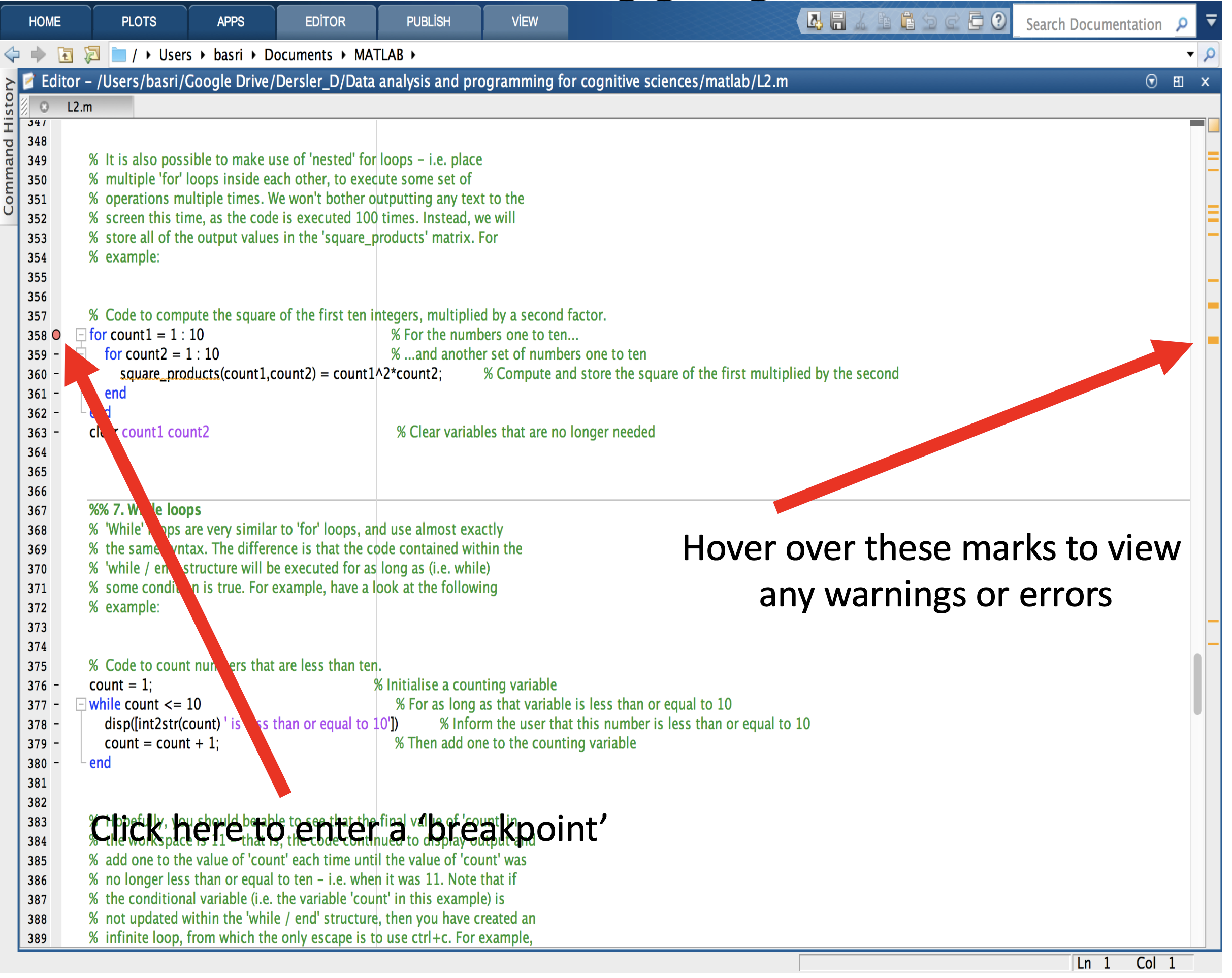
- Red underlines = errors; orange = warnings; hover to see hints.
- Use
disp/fprintfto print variables while you iterate. - MATLAB suggestions help but are not always correct.
Debugging (Breakpoints)
- Click the gutter to set a breakpoint (red dot).
- Code runs to that line; then you can step line-by-line.
- Inspect variables in the workspace while paused; click again to clear.
Debugging (Visual)