Course Introduction and Python Basics
EE1021 Programming for Engineers · Lecture 1 · Fall 2026–2027
Lecture Goals
- Understand the course structure, grading, weekly flow, and practice expectations
- Know the tools used in EE1021: Python 3 and VS Code with the Python extension
- Explain how an algorithm becomes statements and expressions in a program
- Use first Python concepts: values, types, variables, expressions, and operators
- Work with strings, indexing, slicing,
print(), andinput()
Part 1: Course Setup
Instructors
Instructor
- Basri ERDOGAN
- Office: 2D-07
- E-mail:
b.erdogan@iku.edu.tr - Office hours: Monday 13:00–14:00 and Wednesday 11:00–12:00, or by e-mail appointment
Lab Assistant
- Res. Asst. Ahmet Aytuğ AYRANCI
- E-mail:
ahmet.ayranci@iku.edu.tr - Available during and after the Thursday lab sessions
- Lab sections and rules: Syllabus tool in CATS
Welcome to Computer Programming
We will learn to program in Python to solve real-world engineering problems. No prior experience is required, but steady practice matters.
1 Before class
Skim the slides and bring one question.
2 In the lab
Write, run, and explain your own code.
3 After class
Redo one example without looking at the solution.
4 When stuck
Ask early in class, lab, office hours, or by e-mail.
Course Sessions
Lecture — Wednesday 09:00–10:50, 4C-0406
- New topic each week, with short predict-and-check exercises
- Ask questions as we go; do not wait until the lab
- Attendance is recorded with the PUMA QR code shown in class
Lab — Thursday, B2 Electrical Lab
- Section 1 at 11:00–12:50, Section 2 at 13:00–14:50; you attend your own section
- You practise Wednesday’s topic by writing and running code yourself
- Five short lab quizzes on paper in weeks 3, 4, 5, 10 and 11 count 20% of the grade; no make-up for a missed quiz
- You may miss at most two lab sessions in the term
- No lab this week (17 September). First lab: Thursday 24 September.
Course Roadmap: Weeks 1–6
Weekly rhythm: the Wednesday lecture introduces the topic; the Thursday lab practises it. The first lab is in week 2.
01 Course and Python basics 16 Sep
Variables, numbers, strings, input and output. No lab this week.
02 Control flow 23 Sep
if / else, for and while. Lab 1: strings, if-else and loops
03 Functions and modules 30 Sep
Built-in functions, your own functions, scope. Lab 2 + Quiz 1
04 Data structures 7 Oct
Strings, tuples, lists, dictionaries and sets. Lab 3 + Quiz 2
05 Debugging, errors and exceptions 14 Oct
Reading error messages, try / except. Lab 4 + Quiz 3
06 Object-oriented programming I 21 Oct
Classes, objects and methods. Lab 5 and midterm practice; project topics announced
Course Roadmap: Weeks 7–12
Second half: object-oriented programming, then data, files and numerical computing, ending with the project presentations.
07 No class 28–29 Oct
Cumhuriyet Bayramı. Make-up days: 7–8 December (MATLAB basics)
08 Midterm exam 4 Nov
Written exam in the lecture hour, weeks 1–6. Lab: solutions and review
09 Object-oriented programming II 11 Nov
Inheritance and applications. Lab 6; project groups registered
10 Data and visualisation 18 Nov
NumPy arrays and matplotlib plots. Lab 7 + Quiz 4
11 File input/output and CSV 25 Nov
Reading and writing data files. Lab 8 + Quiz 5
12 Numerical computing and review 2 Dec
Lab: project presentations and submission. Final exam: 9–22 December
Grading
20% Lab quizzes
Five short written quizzes in the lab, weeks 3, 4, 5, 10 and 11; the average counts
25% Midterm
Written exam in week 8 (4 November): trace and explain code
35% Final
Written exam, 9–22 December, covering the whole course
20% Project
Group project (3 students): working program, short report and presentation in week 12
Practice homework is not graded. Missed lab quizzes have no make-up. Letter grades: relative evaluation in Orion; at least 20/100 in the final exam is required to pass. Attendance: at least 80%, and no more than two missed lab sessions.
Tools and Learning Resources
- Python 3 runs your programs; it is installed on the lab PCs.
- VS Code with the Python extension is the course editor. On the lab PCs use the desktop shortcut EE1021 Python.
- At home: install Python 3 from python.org, then VS Code and its Python extension. If you already have Anaconda, it also works.
- Course text: Guttag, Introduction to Computation and Programming Using Python, 2nd ed. (MIT Press) — free alternative: Think Python, 3rd edition
- Language reference: The Python Tutorial
1 Install Python 3
python.org/downloads — tick “Add python.exe to PATH”
2 Install VS Code + Python extension
code.visualstudio.com, then the Python extension by Microsoft
3 Open a folder and run
Create hello.py, press the Run button, read the output in the terminal.
Your IDE Workspace
hello.py
name = input("Your name: ")
print("Hello", name)PS C:\Work\1234567> python hello.py
Your name: Ada
Hello Ada
Course demonstrations and worksheets use VS Code: write code in the editor, press Run, read the output in the TERMINAL panel, and check the interpreter name in the Status Bar.
First Run: A Power Calculator
Type this program in VS Code, predict the output, and run it.
Do not worry about every term yet. The goal is to complete the full cycle: type → predict → run → inspect → explain.
Two Ways to Run Python
Interactive prompt — type in the VS Code terminal after python
The prompt answers every expression you type. Good for trying one line.
Slides marked with >>> are prompt examples; everything else is written as a script. Text after # is a comment: Python ignores it.
Part 2: Algorithms and Programs
What Does a Computer Do?
Fundamentally, a computer:
× Performs calculations
Billions of operations per second
▣ Remembers results
Values in memory while the program runs; files on disk afterwards
What kinds of calculations?
- Built into the language
- Defined by you as the programmer
We write recipes to make the computer perform tasks.
A Numerical Example
The square root of a number x is y such that y*y = x.
Recipe for approximating the square root of x = 16:
- Start with a guess,
g. - If
abs(g*g - x) < 0.001, stop and usegas the approximation. - Otherwise make a new guess by averaging
gandx/g. - Repeat with the new guess until close enough.
You will write this recipe as a while loop in week 2; today we only read it.
Guess g |
g × g |
x / g |
New guess (g + x/g) / 2 |
|---|---|---|---|
| 3 | 9 | 5.333 | 4.167 |
| 4.167 | 17.361 | 3.840 | 4.003 |
| 4.003 | 16.024 | 3.997 | 4.000 |
What Is a Recipe?
1 Sequence
Simple steps in a useful order
2 Flow of control
Rules for deciding when a step runs
3 Stopping condition
A clear condition for finishing
Sequence + flow of control + stopping condition = algorithm.
From Algorithm to Stored Program
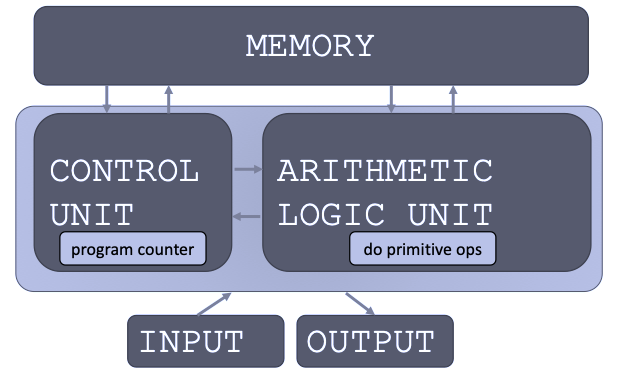
- A stored-program computer keeps instructions and data in memory.
- Instructions perform arithmetic, logic, tests, and data movement.
- The interpreter executes Python statements and evaluates expressions.
- Tests and loops change the flow of control.
Python Programs
- A Python program contains statements and expressions. Statements act, expressions produce.
- The interpreter executes statements such as assignment and
print(). - It evaluates expressions such as
2 + 3to produce values. Test: if you can writex =in front of it, it is an expression. - Try single lines at the interactive prompt (
>>>); save longer programs in a.pyfile and run the file. - Text after
#is a comment for the reader; the interpreter skips it.
Values, Objects, Names, and Types
- Every value in Python is an object with a type.
- A type determines which operations are valid.
- Common Lecture 1 examples:
- Numbers and Boolean values:
int,float,bool - Text sequences:
str
- Numbers and Boolean values:
- A variable is a name bound to a value: a label attached to the value, not a box that holds it (see the binding diagram in two slides).
- Lists and NumPy arrays come later in the course.
Expressions
- Combine objects and operators to form expressions.
- An expression has a value and a type.
- Pattern for a simple binary expression:
Binding Variables and Values
The equal sign assigns a value to a variable name.
- The value is stored in computer memory.
- An assignment binds a name to a value.
- Retrieve the value by evaluating the name at the prompt, or by printing it in a script:
Try it — predict before running: at the prompt, what does >>> pi_approx display? What does print(pi_approx) show in a script?
Check: both show approximately 3.142857; a bare pi_approx in a script shows nothing.
Watch for: = binds a value to a name; == compares two values.
Changing Bindings
- A new assignment re-binds the name; the old value
2.2is no longer reachable throughradius.
Try it — predict: after the last line, what is area?
Check: still 15.1976. area was computed once; it does not follow radius. Re-run the formula to update it.
pi→3.14
radius→3.2
area→15.1976
2.2 is no longer bound to a name; area keeps its earlier result.
Part 3: Values, Variables, and Operators
Arithmetic Operators on int and float
| Expression | Meaning |
|---|---|
x + y |
addition |
x - y |
subtraction |
x * y |
multiplication |
x / y |
division |
x % y |
remainder, e.g. 5 % 2 -> 1 |
x ** y |
x to the power of y |
x // y |
floor division, e.g. 5 // 2 -> 2 |
Try it — predict before running: at the prompt, >>> 17 // 5 and >>> 17 % 5.
Check: 3 and 2.
Watch for: / performs ordinary division and returns a float.
Valid Names, Useful Functions, and Precedence
Variable names
- May contain letters, digits, and
_ - Cannot start with a digit
- Cannot contain spaces or
- - Are case-sensitive:
speedandSpeeddiffer
Comparison and Logical Operators
| Operator | Meaning |
|---|---|
x < y |
less than |
x > y |
greater than |
x <= y |
less than or equal |
x >= y |
greater than or equal |
x == y |
equal |
x != y |
not equal |
Every comparison produces a bool: True or False.
Try it — predict: 3 >= 3.0 and "5" == 5
Check: True and False — a string is never equal to a number.
For Lecture 1, assume x and y are Boolean values.
| Operator | Description |
|---|---|
x and y |
True only if both are True. |
x or y |
True if at least one is True. |
not x |
Reverses True and False. |
Assignment and Updating a Value
| Operator | Meaning | Example |
|---|---|---|
= |
assignment | x = 5 |
+= |
add and assign | x += 3 means x = x + 3 |
-= |
subtract and assign | x -= 2 means x = x - 2 |
*= |
multiply and assign | x *= 2 means x = x * 2 |
The same update pattern also works with /=, //=, %=, and **=.
Operator Checkpoint
Compute and update
Before the update, full_steps is 3 and remainder is 2. After the update, full_steps is 4.
Part 4: Strings and Console I/O
Strings
- Letters, special characters, spaces, and digits
- Enclosed in double quotation marks or single quotes
- Strings can be concatenated, repeated, and searched:
hi = "hello there"
name = "ana"

greet = hi + name
greeting = hi + " " + name
repeated = (name + " ") * 3
has_a = "a" in name
Try it — predict before running: print(greet) and print(has_a)
Check: hello thereana (no space is added for you) and True.
Strings: Indexing
Square brackets perform indexing into a string.
Strings: Slicing
Use [start:stop:step] to slice strings.
- If you give two numbers,
[start:stop], thenstep = 1by default. - You can omit numbers and leave just colons.
Console Input and Output
Display a result with print()
Convert numeric input before calculating:
Try it — predict before running: if the user types 7, what does print(5 * text) display?
Check: 77777.
Watch for: input() returns a string; use int() or float() when you need a number.
Five-Minute Exit Ticket
Answer without running Python first. Then check your answers in VS Code.
- What value and type does
7 // 2produce? And7 / 2? - If
unit = "volt", what dounit[-1],unit[1:3], andunit * 2produce? - After
x = 5,x += 2,x *= 3, what isx? Which line would fail ifxhad been read withinput()and not converted?
Check: 3 (int) and 3.5 (float); "t", "ol", "voltvolt"; 21 — x += 2 fails because input() returns a string.
Summary
- An algorithm is a precise recipe with a sequence, flow of control, and stopping condition.
- A Python program contains statements and expressions.
- Variables bind names to values; every value has a type.
- Expressions combine values and operators to produce new values.
- Python uses operators for arithmetic, comparisons, logic, assignment, and membership.
- Strings support indexing and slicing.
print()displays output;input()receives text from the user.